Creating Rentals
How to create a rental manually using the Add Rental flow, and how availability blocking works
Creating Rentals
You can create rentals two ways: customers submit inquiries from your public catalog, or you create them manually yourself. This article covers the manual Add Rental flow.
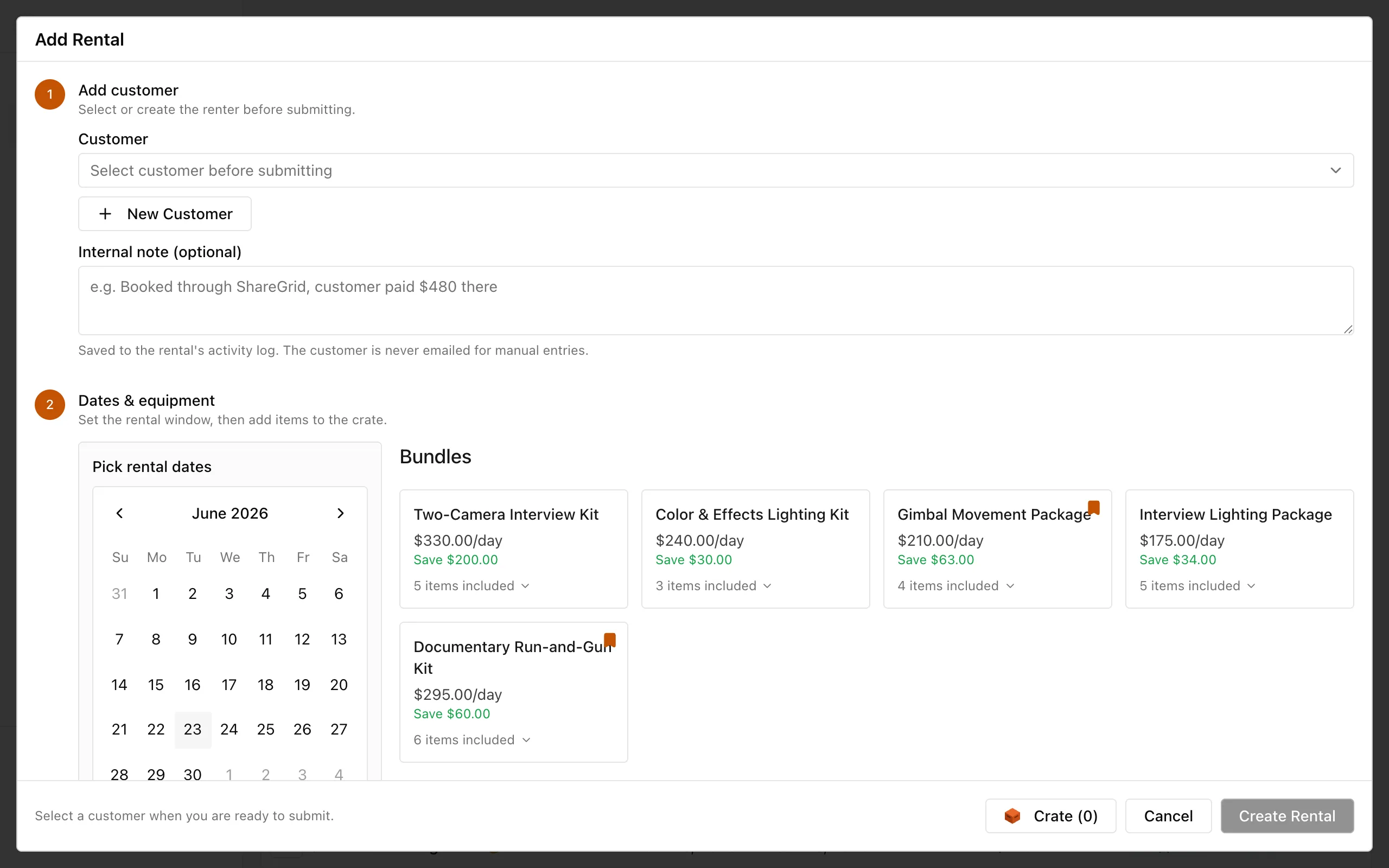
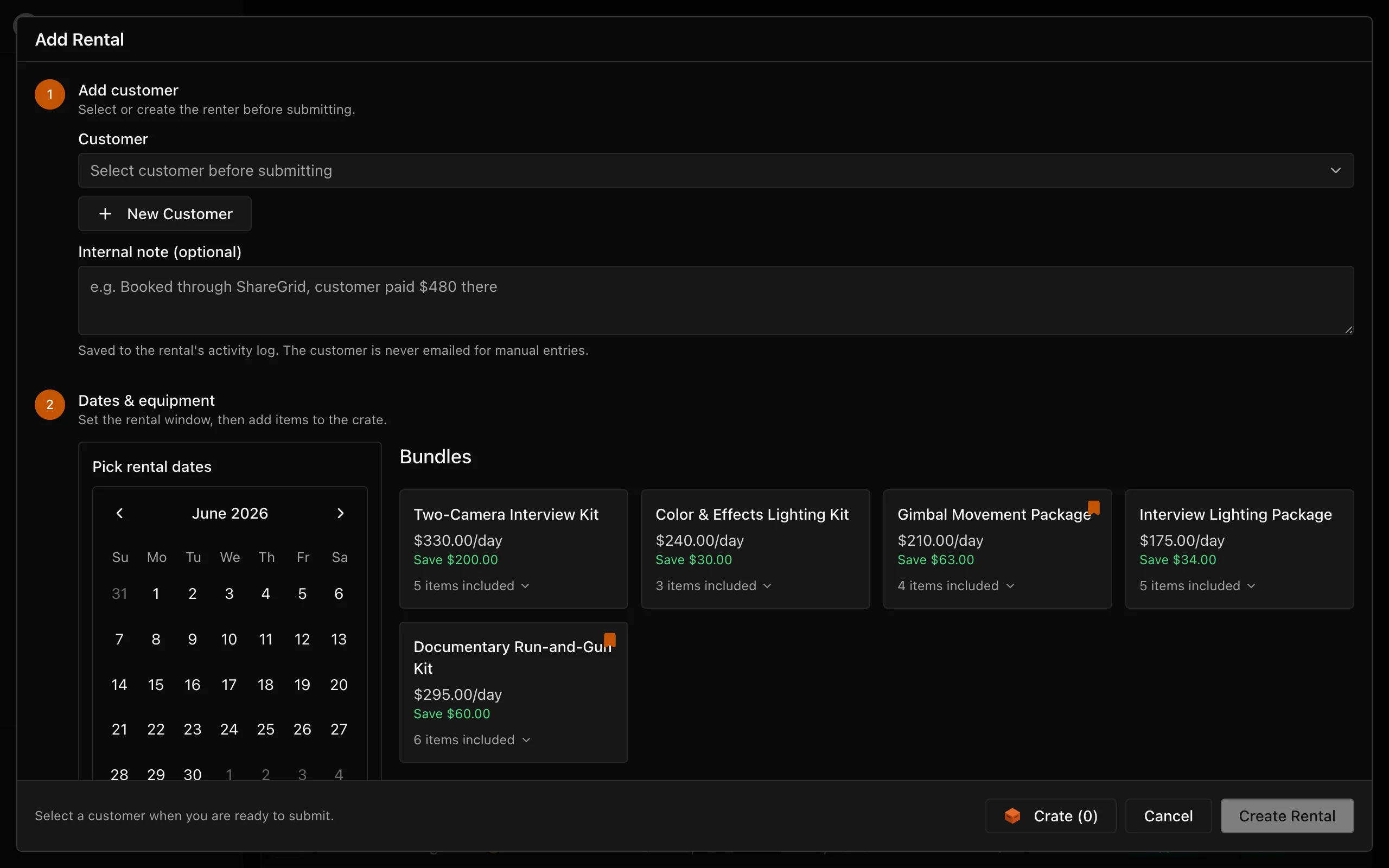
Opening the Add Rental dialog
Click the Add Rental button. It appears in the top-right corner of the Rentals page and on My Day. The dialog opens a full rental builder.
Building the rental
- Select or create a customer. Choose from your existing customers in the dropdown, or click New customer to add one on the spot.
- Set dates. Enter the rental start and end date.
- Add items. The catalog panel on the right lets you browse your inventory and add items. You can also add bundles (Pro). Set the quantity for each item.
- Add a note (optional). Internal notes appear on the rental detail but are not sent to the customer.
- Click Create rental.
How availability blocking works
HotCrate checks availability at the moment you create the rental. The system looks at every item you have selected and compares the quantity you are booking against what is already committed on those dates.
Only items with enough available quantity can be booked. If you try to add more units than are available, the rental is blocked with a plain message: for example, "Only 2 of 'Sound System' available for those dates."
Available quantity is calculated as:
Available = Total quantity - Committed quantity - Date blocks
Committed means rentals in accepted, prepped, or picked up status.
If an item shows as unavailable
- Check the Availability page to see which rentals are blocking that date range.
- Adjust the quantity you are booking, or change the rental dates.
- If you own more units than HotCrate knows about, update the item's quantity in Inventory.
Related
- Rental statuses - what happens after you create a rental
- Availability and date blocks - how date blocks reduce available quantity